How to Build a Churn Dashboard in 30 Minutes

Most SaaS founders track MRR. Fewer track where it leaks. If you don't have a churn dashboard, you're flying blind on the single biggest threat to your recurring revenue.
The good news: you don't need a data engineering team or an expensive BI tool. With Stripe's built-in data, a spreadsheet or free dashboard tool, and 30 minutes of focused work, you can build a churn dashboard that surfaces the numbers that actually matter.
This guide walks you through every step, from choosing which metrics to track to pulling the data and setting up alerts that catch problems before they become catastrophic.
Why Most SaaS Founders Don't Have a Churn Dashboard
It's not laziness. It's that churn data is scattered across multiple places in Stripe: subscriptions, invoices, charges, events. Piecing it together feels like it requires SQL skills you may not have and time you definitely don't.
The result? Most founders check their Stripe dashboard occasionally, see a few failed payments, shrug, and move on. Meanwhile, 2-5% of their customers are silently disappearing every month to preventable payment failures.
A dedicated churn dashboard fixes this by putting all the critical signals in one place, updated automatically. You stop reacting and start predicting.
What Your Churn Dashboard Needs to Track
Before opening any tool, define what you're measuring. A churn dashboard that tries to track everything tracks nothing useful. Focus on these seven metrics:
1. Monthly Churn Rate (Voluntary + Involuntary)
Your headline number. Calculate it as: (Customers lost in period / Customers at start of period) x 100. But here's the critical part: split it into voluntary (cancellations) and involuntary (failed payments). The strategies for each are completely different, and lumping them together hides the real problem.
For most SaaS businesses, involuntary churn accounts for 20-40% of all churn. That's revenue you're losing not because customers want to leave, but because their payment failed and nobody followed up properly.
2. Failed Payment Rate
Track this weekly, not monthly. The formula: (Failed payment attempts / Total payment attempts) x 100. A healthy SaaS sees 2-4% failure rates. If you're above 5%, something is wrong, and you need to investigate whether it's specific decline codes like insufficient funds clustering on certain days, or expired cards that nobody's been warned about.
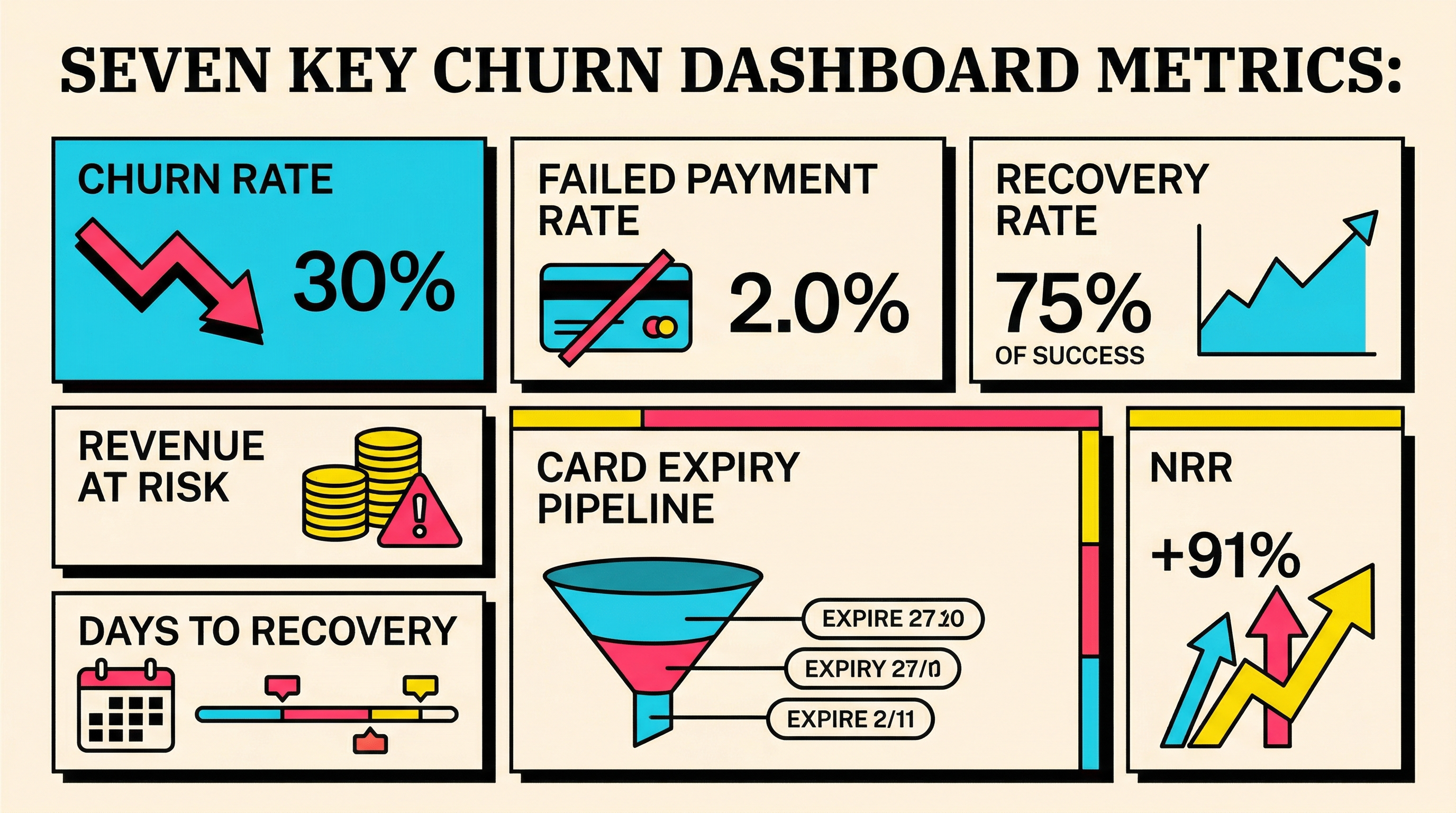
3. Recovery Rate
Of the payments that fail, what percentage do you eventually collect? This is where most SaaS founders have zero visibility. Track: (Successfully retried or recovered payments / Total failed payments) x 100. Industry benchmarks put a good recovery rate at 50-70%. If yours is below 40%, your dunning process needs work.
4. Revenue at Risk
Don't just count failed payments. Multiply them by their value. A dashboard that says "12 failed payments" feels manageable. One that says "$4,800 in revenue at risk this week" creates urgency. This is the number that turns churn from an abstract metric into a concrete dollar amount your team pays attention to.
5. Days to Recovery
How long does it take to recover a failed payment on average? The longer it takes, the more likely the customer churns permanently. Track the median days between first failure and successful recovery. Good: under 7 days. Concerning: 7-14 days. Critical: over 14 days, where recovery rates drop below 20%.
6. Card Expiry Pipeline
This is your early warning system. Count how many active customers have cards expiring in the next 30, 60, and 90 days. This is entirely preventable churn sitting in your data, waiting to happen. A quick Stripe API call surfaces this immediately.
7. Net Revenue Retention (NRR)
The meta-metric. NRR accounts for churn, contraction, expansion, and reactivation in one number. Track it monthly and aim for over 100%. If your NRR is below 90%, churn is eating your growth faster than new sales can replace it.
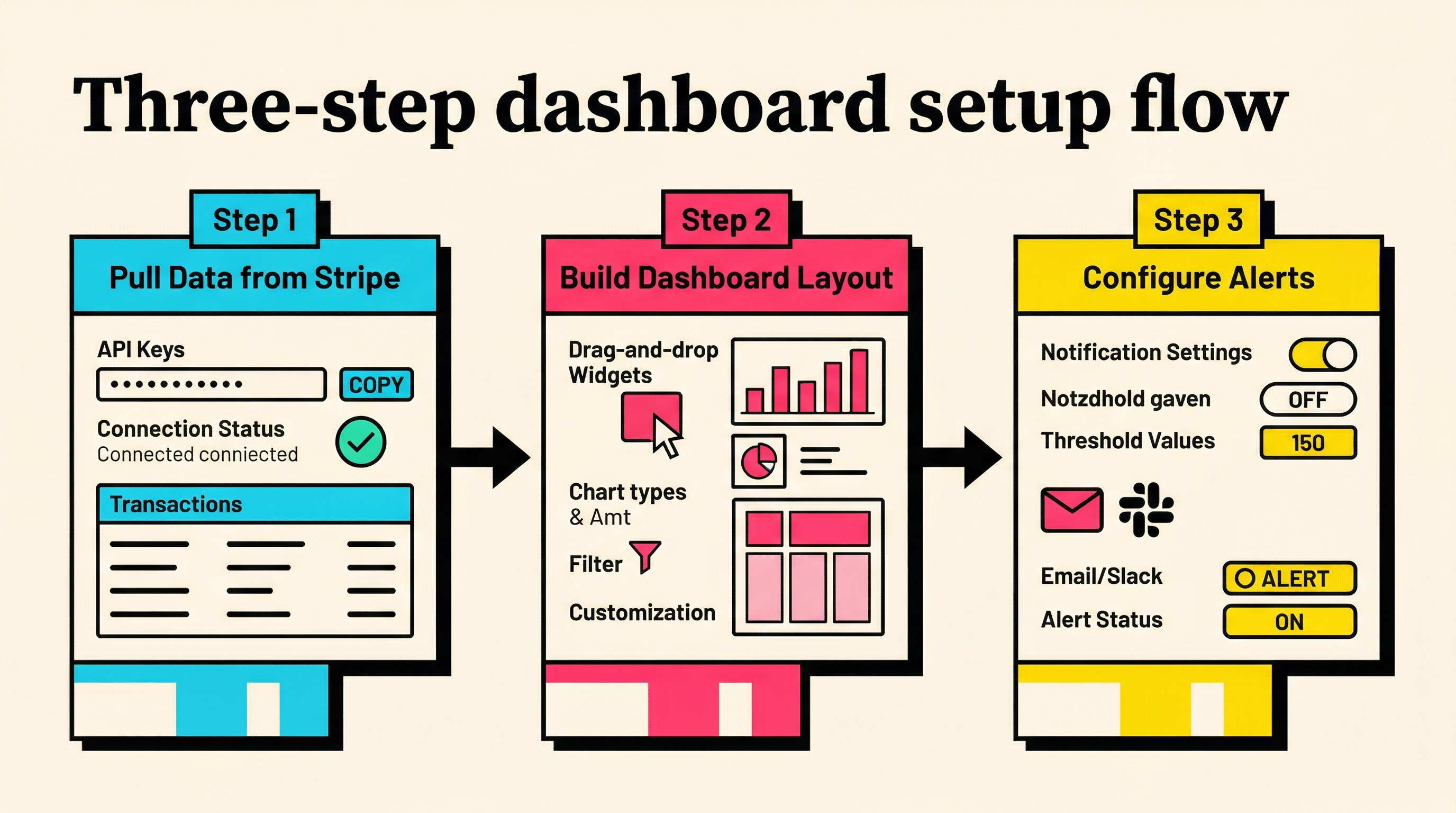
Step 1: Pull Your Data from Stripe (10 Minutes)
You have three options for getting data out of Stripe, depending on your technical comfort level:
Option A: Stripe Dashboard Export (No Code)
Go to Stripe Dashboard > Payments > Export. Download the last 90 days of payments as CSV. Then go to Customers > Subscriptions > Export for subscription data. You'll have two CSV files that contain almost everything you need.
Filter the payments export for status = failed to isolate your failed payment data. The failure_code column tells you why each payment failed, which is essential for categorizing problems.
Option B: Stripe Sigma (SQL, Built Into Stripe)
If you have Stripe Sigma access, you can query directly:
SELECT
  date_trunc('week', created) as week,
  count(*) as total_charges,
  count(case when status = 'failed' then 1 end) as failed,
  round(count(case when status = 'failed' then 1 end)::numeric / count(*)::numeric * 100, 2) as failure_rate
FROM charges
WHERE created > now() - interval '90 days'
GROUP BY 1
ORDER BY 1;
This gives you weekly failure rates in seconds. Add similar queries for subscription cancellations and you have your raw data.
Option C: Stripe API Script (5 Minutes With Code)
A simple Node.js or Python script can pull everything you need:
const stripe = require('stripe')('sk_live_...');

// Get failed charges from last 90 days
const charges = await stripe.charges.list({
  created: { gte: Math.floor(Date.now()/1000) - 90*86400 },
  limit: 100,
});

const failed = charges.data.filter(c => c.status === 'failed');
const failureRate = (failed.length / charges.data.length * 100).toFixed(2);
console.log(`Failure rate: ${failureRate}%`);
Whichever method you choose, export the data and move to the next step.
Step 2: Set Up Your Dashboard Layout (10 Minutes)
You don't need Looker or Tableau. A Google Sheet works for most early-stage SaaS companies. Here's the layout:
Tab 1: Weekly Overview
Create columns for: Week Starting, Total Customers, New Customers, Churned (Voluntary), Churned (Involuntary), Churn Rate %, MRR Lost, MRR Recovered, Net Revenue Retention %.
Formula for churn rate: =((E2+F2)/B2)*100
Formula for NRR: =((B2-E2-F2+C2)/B2)*100
Tab 2: Failed Payment Tracker
Columns: Date, Customer Email, Amount, Decline Code, Retry Attempts, Recovered (Y/N), Days to Recovery.
This is your operational tab. Review it weekly. Sort by amount descending to prioritize high-value recovery.
Tab 3: Card Expiry Pipeline
Columns: Customer Email, Card Last 4, Expiry Month, Expiry Year, Subscription MRR, Days Until Expiry, Notified (Y/N).
Sort by Days Until Expiry ascending. Anyone expiring within 30 days should already have been notified.
Free Dashboard Alternatives
If spreadsheets feel too manual, consider these free or cheap options:
Google Looker Studio (free): Connect directly to Google Sheets or CSV data. Drag-and-drop visualizations. Perfect for a dashboard you check weekly.
Metabase (free, self-hosted): Connects directly to your database if you store Stripe webhook data. More powerful than Sheets, still zero cost.
Stripe's built-in analytics: Stripe's Revenue and Customer tabs have improved significantly. They won't give you a custom churn dashboard, but they cover basic metrics out of the box.
Step 3: Configure Alerts and Automation (10 Minutes)
A dashboard you never check is worse than no dashboard, because it creates false confidence. Set up these three alerts:
Alert 1: Weekly Failure Rate Spike
If your weekly failed payment rate exceeds your baseline by more than 50%, something has changed. Maybe a card network is having issues. Maybe a batch of cards expired. Whatever it is, you want to know immediately.
In Google Sheets, use a conditional formatting rule on your failure rate column: if the value is more than 1.5x the previous week, highlight it red.
Alert 2: High-Value Payment Failures
Any single failed payment above your average MRR per customer deserves immediate attention. Set up a Stripe webhook for invoice.payment_failed and filter by amount. A simple Zapier or Make.com automation can send these to Slack or email.
Trigger: Stripe invoice.payment_failed
Condition: amount > $200 (adjust to your average)
Action: Send Slack message to #revenue channel
Alert 3: Card Expiry Warning (30 Days Out)
Run a weekly check for cards expiring in the next 30 days. If you're using the API approach, this is a simple filter on your customer data. Email these customers proactively before the payment fails.
This single alert can prevent 10-15% of involuntary churn before it happens. It's the highest-ROI automation on this entire dashboard.
The Metrics That Actually Move the Needle
Once your churn dashboard is running, resist the urge to add more metrics. The power of a focused dashboard is clarity. Here's how to use what you've built:
Weekly review (5 minutes): Check your failure rate trend and recovery rate. Are they stable, improving, or deteriorating? Any high-value failures that need manual follow-up?
Monthly review (15 minutes): Calculate NRR. Compare voluntary vs involuntary churn split. Is your card expiry pipeline growing or shrinking? Are your dunning emails actually recovering revenue?
Quarterly review (30 minutes): Step back and look at trends. Is your churn rate improving as you grow? Are certain customer segments churning faster? Is your recovery rate keeping pace with your failure rate?
The founders who reduce churn fastest are the ones who look at these numbers regularly, not the ones with the fanciest dashboards.
Common Mistakes When Building a Churn Dashboard
Tracking Too Many Metrics
If your dashboard has more than 10 metrics, you'll stop checking it within a month. Start with the seven listed above. Add more only when you've mastered those.
Not Splitting Voluntary and Involuntary
This is the most common and most costly mistake. A 5% monthly churn rate means very different things if 4% is voluntary (product problem) versus 4% involuntary (payment infrastructure problem). The fixes are completely different, and a combined number hides which lever to pull.
Ignoring Cohort Analysis
Overall churn rates can mask problems. If your churn rate is 3% but your 60-day-old customers churn at 8%, you have an onboarding issue that the headline number doesn't reveal. Add a cohort view once your basic dashboard is stable.
Not Acting on the Data
The dashboard is a tool, not a solution. If it shows your recovery rate is 30% (below the 50-70% benchmark), that's a signal to fix your dunning process. If it shows 15% of failures are expired cards, that's a signal to implement pre-dunning alerts. Data without action is just decoration.
From Dashboard to Action: What to Fix First
Your new churn dashboard will surface problems. Here's the priority order for fixing them:
If your failure rate is above 5%: Start with decline code analysis. Are most failures "insufficient funds" (retry timing problem) or "expired card" (notification problem)? Each decline code has a specific resolution strategy.
If your recovery rate is below 40%: Your retry timing or dunning sequence needs work. Most Stripe defaults are not optimized for SaaS subscription recovery. Custom retry logic can improve recovery rates by 15-25 percentage points.
If your card expiry pipeline is growing: Implement automated card update reminders 30, 14, and 3 days before expiry. This alone can reduce involuntary churn by 10-15%.
If your NRR is below 90%: Churn is outpacing growth. This is a company-level emergency that needs both product changes (voluntary churn) and payment infrastructure improvements (involuntary churn).
Keep It Simple, Keep It Running
The best churn dashboard is one you actually use. A Google Sheet you check every Monday morning beats a sophisticated BI tool you log into once a quarter. Start with the basics outlined here, get in the habit of reviewing weekly, and iterate from there.
The 30 minutes you spend building this dashboard today will save you hours of guesswork and thousands in recovered revenue over the next year. Most of the churn problems it surfaces are fixable, you just need to see them first.
Want to skip the manual setup and get an instant view of your Stripe account's churn health? Run a free churn audit and see exactly where your revenue is leaking in under two minutes.
Related Posts
Stripe Do Not Honor Recovery: What SaaS Teams Should Do Next

7 Payment Recovery KPIs Every Stripe Team Should Track

7 Failed Payment Segments Every Stripe Team Should Track
How healthy is your Stripe account?
Get a free churn health report. Find pending cancellations, failed payments, and expiring cards putting your MRR at risk.
Run Free Audit