How to Set Up Stripe Payment Method Update Links
Every failed payment is a customer asking to leave. Sometimes they don't even know it.
The most frustrating kind of churn is the kind where the customer wants to keep paying. Their card expired, their bank issued a new number, or they hit a spending limit. They'd fix it in a heartbeat if you made it easy. The problem? Most SaaS businesses don't.
Stripe's payment method update links solve this. Instead of sending customers to a generic settings page and hoping they figure it out, you send them a direct link that opens a pre-built, secure form to update their card. No login required. No confusion. Just "click here, enter new card, done."
This guide walks you through setting up Stripe payment method update links from scratch. You'll learn how to generate them via the API, embed them in dunning emails, and handle edge cases that trip up most teams.
Why Payment Method Update Links Matter
The gap between a failed payment and a cancelled subscription is often just friction. Research consistently shows that customers who fail to update their payment details within the first 48 hours of a failure are 3x more likely to churn permanently.
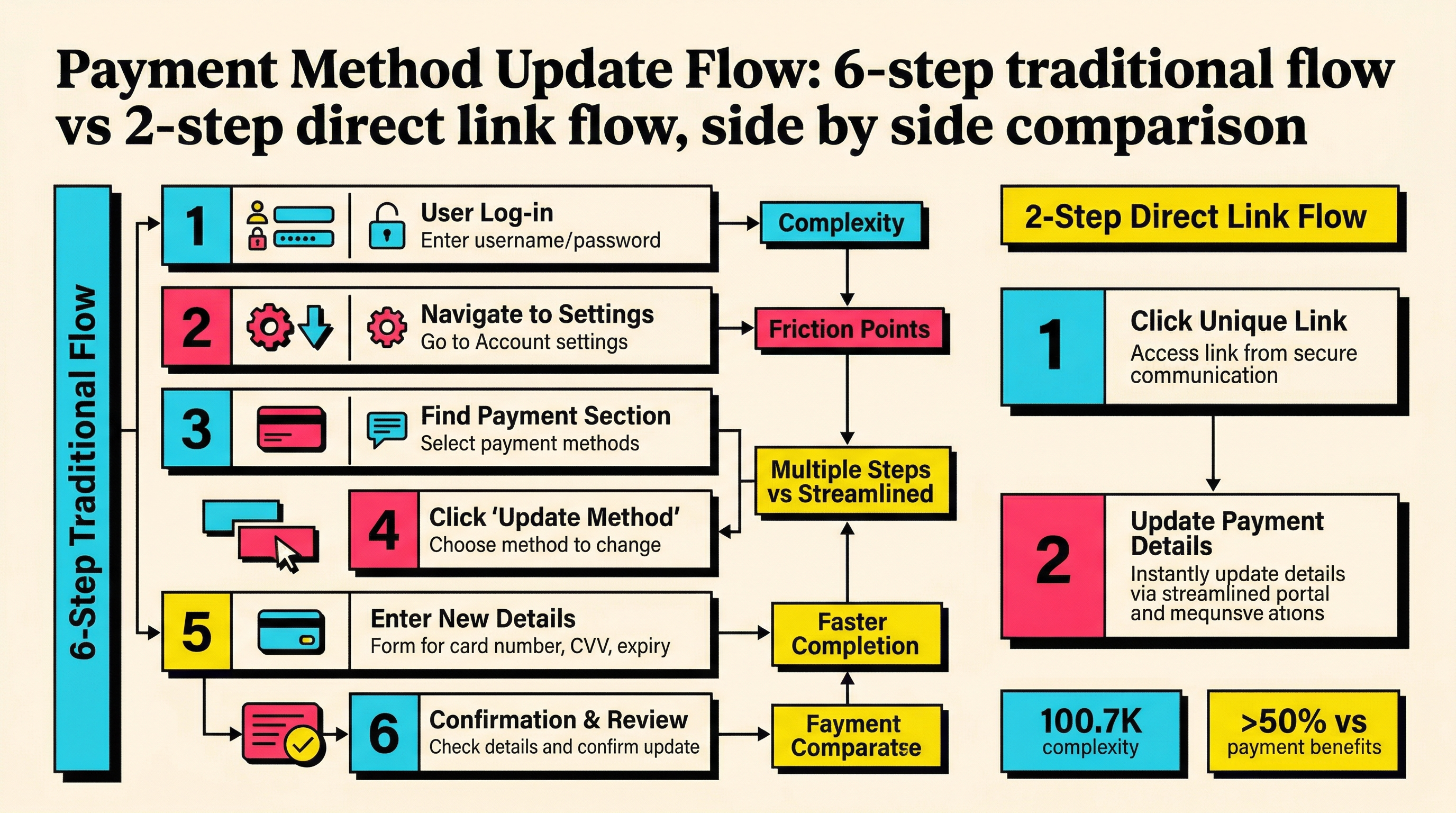
Traditional approaches ask customers to:
- Open your email
- Click through to your app
- Log in (assuming they remember their password)
- Navigate to billing settings
- Find the payment method section
- Enter new card details
That's six steps. Every step is a drop-off point. Payment method update links collapse this to two steps: open email, click link, update card. That's it.
For a SaaS business doing $50K MRR with a 3% monthly payment failure rate, recovering even half of those failures through better update flows could mean $9,000+ in saved revenue per year.
How Stripe Payment Method Update Links Work
Stripe offers two primary mechanisms for payment method update links:
1. Customer Portal Sessions
The Stripe Customer Portal is a hosted page where customers can manage their subscription, view invoices, and critically, update their payment method. You create a portal session via the API, which generates a unique, time-limited URL.
2. Hosted Invoice Pages
When a payment fails, Stripe can send customers to a hosted invoice page where they can retry the payment with a new card. This is built into Stripe's invoice system and requires minimal setup.
Both approaches have trade-offs. Customer Portal sessions give you more control over branding and what customers can do. Hosted invoice pages are simpler but less customizable.
For most SaaS businesses, the Customer Portal approach is the better choice for proactive payment method updates, while hosted invoice pages work well as a fallback for active failures.
Step 1: Configure the Stripe Customer Portal
Before you can generate update links, you need to configure what your Customer Portal looks like and what actions customers can take.
Dashboard Setup
Go to Settings > Customer Portal in your Stripe Dashboard. Here you'll configure:
- Business information: Your company name and support links
- Payment method management: Toggle this ON. This is the critical setting that allows customers to update their card
- Subscription management: Decide whether customers can cancel, pause, or switch plans from the portal
- Invoice history: Whether to show past invoices
For payment recovery, the minimum configuration is:
- Payment method management: Enabled
- Everything else: Optional (enable what makes sense for your business)
Code Configuration
You can also configure the portal programmatically:
const stripe = require('stripe')('sk_live_your_key');

const configuration = await stripe.billingPortal.configurations.create({
  business_profile: {
    headline: 'Manage your subscription',
    privacy_policy_url: 'https://yourapp.com/privacy',
    terms_of_service_url: 'https://yourapp.com/terms',
  },
  features: {
    payment_method_update: {
      enabled: true,
    },
    customer_update: {
      enabled: true,
      allowed_updates: ['email', 'address'],
    },
    subscription_cancel: {
      enabled: false,
    },
  },
});
Pro tip: Create a separate portal configuration specifically for payment recovery. Disable cancellation and plan switching so customers focus on one thing: updating their payment method. You can have multiple configurations and use the appropriate one based on context.
Step 2: Generate Payment Method Update Links via the API
Once your portal is configured, generating a link is a single API call.
Basic Session Creation
const session = await stripe.billingPortal.sessions.create({
  customer: 'cus_ABC123',
  return_url: 'https://yourapp.com/billing?updated=true',
});

console.log(session.url);
The return_url is where customers land after they finish. Use this to show a confirmation message or redirect them back to your app.
Targeting the Payment Method Section
By default, the portal opens to an overview page. You can deep-link directly to the payment method update section:
const session = await stripe.billingPortal.sessions.create({
  customer: 'cus_ABC123',
  return_url: 'https://yourapp.com/billing?updated=true',
  flow_data: {
    type: 'payment_method_update',
  },
});
The flow_data parameter tells Stripe to skip the portal overview and go straight to the payment method form. This reduces friction by one more click.
Session Expiry and Security
Portal sessions expire after 24 hours by default. This is important for your dunning flow:
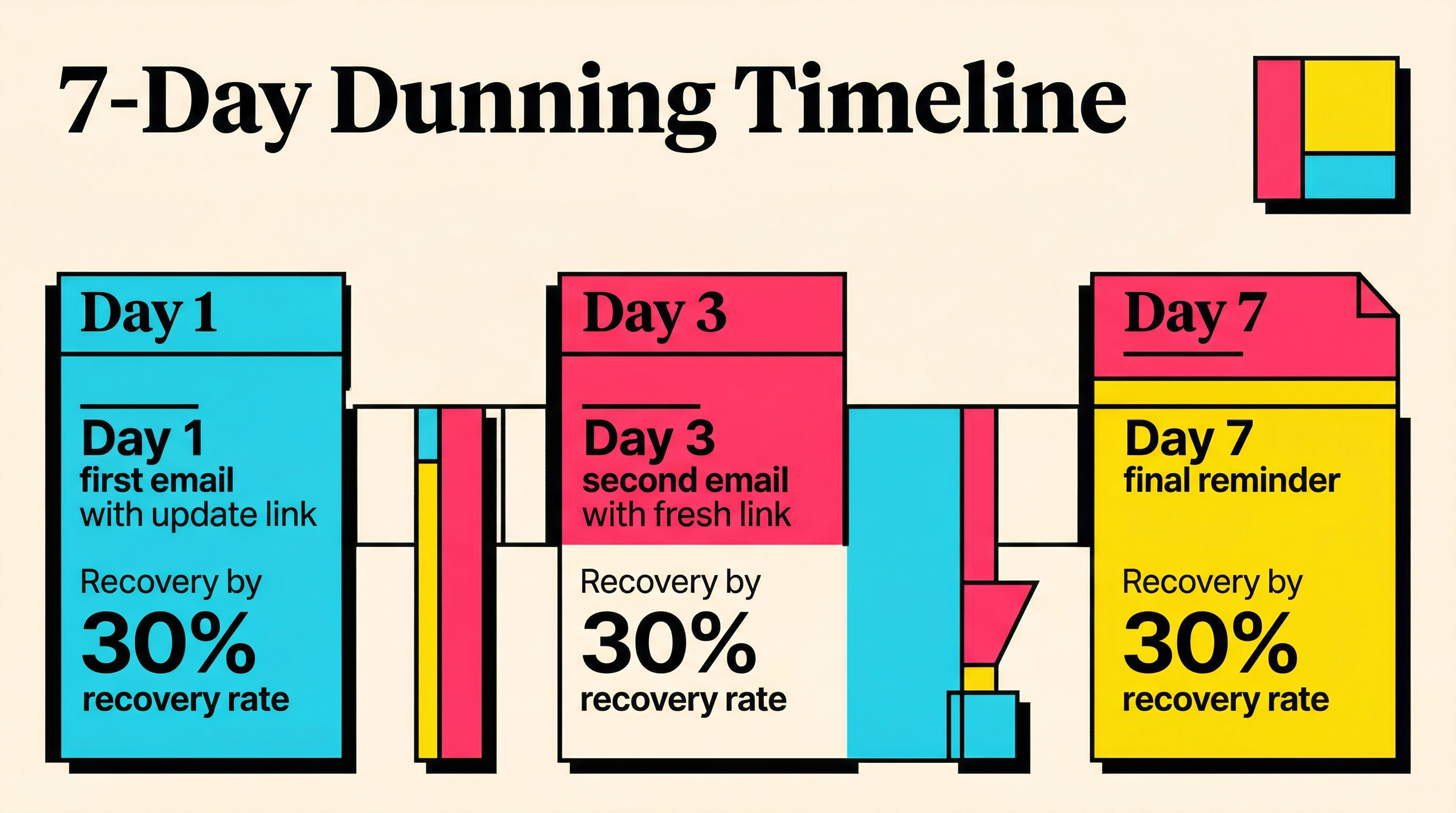
- First dunning email (day 1): Generate a fresh link
- Second email (day 3): Generate a new link (the first may have expired)
- Third email (day 7): Generate another fresh link
Never cache or reuse portal session URLs. They're meant to be single-use and time-limited. Generate a new one each time you send a communication.
Step 3: Embed Links in Your Dunning Emails
The update link is only useful if customers actually click it. Here's how to integrate it into your payment recovery flow.
Email Template Structure
A high-converting dunning email with a payment method update link follows this pattern:
Subject: Your payment for [Product] didn't go through

Hi [Name],

We tried to charge your card ending in [last4] for your
[Product] subscription, but it was declined.

This usually happens when a card expires or your bank
flags an unfamiliar charge. It takes 30 seconds to fix:

[BIG BUTTON: Update Payment Method]

Your subscription is still active, but we'll need updated
payment details within [X days] to keep it running.

Questions? Reply to this email.

Thanks,
[Your Name]
Implementation with Webhooks
The most reliable approach is webhook-driven. Listen for invoice.payment_failed events and trigger your dunning flow:
app.post('/webhooks/stripe', async (req, res) => {
  const event = stripe.webhooks.constructEvent(
    req.body,
    req.headers['stripe-signature'],
    webhookSecret
  );

  if (event.type === 'invoice.payment_failed') {
    const invoice = event.data.object;
    const customerId = invoice.customer;

    const session = await stripe.billingPortal.sessions.create({
      customer: customerId,
      return_url: 'https://yourapp.com/billing?updated=true',
      flow_data: {
        type: 'payment_method_update',
      },
    });

    await sendDunningEmail({
      customerId,
      portalUrl: session.url,
      invoiceAmount: invoice.amount_due,
      lastFour: invoice.charge?.payment_method_details?.card?.last4,
    });
  }

  res.json({ received: true });
});
Key Webhooks to Monitor
Beyond invoice.payment_failed, set up handlers for these related events:
customer.subscription.updated: Detect when a customer updates their payment methodinvoice.paid: Confirm recovery was successful after an updatecustomer.source.updated: Track payment method changes
These webhooks let you close the loop: stop sending dunning emails once the customer has updated their details and the payment succeeds.
Step 4: Handle Edge Cases
Real-world payment recovery is messier than the happy path. Here are the edge cases that catch most teams off guard.
Multiple Subscriptions
If a customer has multiple subscriptions, the portal session applies to all of them. This is usually fine since the payment method update covers all subscriptions tied to that customer object. But if you have customers with subscriptions across different Stripe accounts (rare but possible with Stripe Connect), you'll need separate portal sessions for each.
Expired Portal Sessions
If a customer clicks an expired link, they'll see a Stripe error page. This is a terrible experience. Mitigate it by:
- Setting clear expectations in your email ("This link expires in 24 hours")
- Providing a fallback link to your app's billing page
- Generating fresh links for follow-up emails
Payment Method Update vs. Payment Retry
Updating the payment method doesn't automatically retry the failed invoice. After the customer updates their card, you need to separately retry the invoice:
app.post('/webhooks/stripe', async (req, res) => {
  const event = stripe.webhooks.constructEvent(/*...*/);

  if (event.type === 'payment_method.attached') {
    const invoices = await stripe.invoices.list({
      customer: event.data.object.customer,
      status: 'open',
    });

    for (const invoice of invoices.data) {
      try {
        await stripe.invoices.pay(invoice.id);
      } catch (err) {
        console.error(`Retry failed for ${invoice.id}:`, err.message);
      }
    }
  }

  res.json({ received: true });
});
This automatic retry after a payment method update is what separates a good recovery flow from a great one. Without it, the customer updates their card, thinks everything is fixed, and then gets another failure notification days later when Stripe's own retry schedule kicks in.
Step 5: Track Recovery Metrics
You can't improve what you don't measure. Track these metrics for your stripe payment method update flow:
Key Metrics
- Link click rate: What percentage of dunning emails result in a portal click?
- Update completion rate: Of those who click, how many actually update their payment method?
- Recovery rate: Of those who update, how many invoices are successfully collected?
- Time to update: How long between the first dunning email and the payment method update?
Setting Up Tracking
Use UTM parameters on your return URL to track conversions:
const session = await stripe.billingPortal.sessions.create({
  customer: customerId,
  return_url: 'https://yourapp.com/billing?updated=true&utm_source=dunning&utm_medium=email&utm_campaign=payment_recovery',
  flow_data: {
    type: 'payment_method_update',
  },
});
Combine this with Stripe webhook data to build a complete picture. Industry benchmarks suggest that well-implemented payment recovery flows recover 40-70% of failed payments. If you're below 30%, your update flow likely has friction that needs addressing.
Advanced: Building a Custom Update Flow
The Stripe Customer Portal handles most use cases, but some teams want more control. Stripe also supports building custom payment method update forms using Stripe Elements.
When to Go Custom
Consider a custom flow when:
- Your branding requirements are strict (the portal has limited customization)
- You want to embed the update form directly in your app (no redirect)
- You need to collect additional information during the update
- You want to A/B test different update flows
Basic Custom Implementation
const setupIntent = await stripe.setupIntents.create({
  customer: customerId,
  payment_method_types: ['card'],
  usage: 'off_session',
});

const elements = stripe.elements({
  clientSecret: setupIntent.client_secret,
});

const paymentElement = elements.create('payment');
paymentElement.mount('#payment-element');

const { error } = await stripe.confirmSetup({
  elements,
  confirmParams: {
    return_url: 'https://yourapp.com/billing?updated=true',
  },
});
The usage: 'off_session' parameter tells Stripe that this payment method will be used for future charges without the customer being present. This triggers the appropriate authentication flows, including 3D Secure when required.
Setting as Default Payment Method
After the customer submits the form, set the new payment method as the default:
await stripe.customers.update(customerId, {
  invoice_settings: {
    default_payment_method: newPaymentMethodId,
  },
});
Without this step, Stripe may continue charging the old (failing) payment method.
Common Mistakes to Avoid
After reviewing dozens of Stripe payment method update implementations, these patterns consistently cause problems:
1. Not generating fresh links per email. Reusing expired portal sessions leads to dead links and frustrated customers.
2. Forgetting to retry invoices. Updating the payment method is step one. Retrying the failed charge is step two. Don't skip it.
3. Not deep-linking to the payment section. Dropping customers on the generic portal page adds unnecessary navigation. Use flow_data to target the payment method form directly.
4. Missing the return URL. Without a proper return URL, customers end up on a blank Stripe page after updating.
5. Not tracking recovery events. If you don't know how many customers actually complete the update flow, you can't optimize it.
6. Sending update links to cancelled customers. Check subscription status before generating portal sessions.
Putting It All Together
Here's a complete, production-ready payment recovery flow using Stripe payment method update links:
- Listen for
invoice.payment_failedwebhooks - Check if the customer has an active subscription (skip cancelled ones)
- Generate a portal session with
flow_data.type = 'payment_method_update' - Send a dunning email with the portal URL (day 1)
- Wait and check for
payment_method.attachedorinvoice.paidevents - Retry the invoice automatically when a new payment method is attached
- Repeat with a fresh link at day 3 and day 7 if unresolved
- Close the dunning sequence when the invoice is paid or the grace period ends
This flow typically recovers 50-65% of failed payments, which for a $100K MRR business translates to $18,000-23,000 in annually saved revenue.
The key insight is that the link itself isn't magic. What makes it work is reducing friction to the absolute minimum. Every step you remove between "payment failed" and "card updated" increases your recovery rate.
Ready to Find Your Revenue Leaks?
Setting up Stripe payment method update links is one piece of a broader payment recovery strategy. But it's one of the highest-impact changes you can make, often taking less than a day to implement.
Want to know how much revenue you're currently losing to failed payments? Run a free churn audit to see your exact failure rates, top decline codes, and recovery opportunities. It takes two minutes and shows you exactly where to focus.
Related Posts
Stripe Insufficient Funds Recovery: A Playbook for SaaS Teams
Stripe Do Not Honor Recovery: What SaaS Teams Should Do Next

7 Failed Payment Segments Every Stripe Team Should Track
How healthy is your Stripe account?
Get a free churn health report. Find pending cancellations, failed payments, and expiring cards putting your MRR at risk.
Run Free Audit