How to Set Up a Payment Recovery Flow in Stripe (Step by Step)
Why Payment Recovery Flows Matter for SaaS Revenue
Every month, subscription businesses lose 5-10% of their revenue to failed payments. Most of these failures aren't intentional cancellations. They're expired cards, insufficient funds, or temporary billing issues that customers would happily resolve if given the chance.
The problem? Without a proper payment recovery flow, these customers just disappear. Stripe won't chase them. Your billing system won't nudge them. And you'll watch MRR evaporate because of preventable technical hiccups.
A payment recovery flow is your automated system for catching failed payments and bringing customers back before they churn. When set up correctly, it can recover 20-40% of failed payments with minimal manual effort.
This guide walks through setting up a complete stripe payment recovery system, step by step, using Stripe's native tools plus a few proven strategies that actually work.
What You'll Need Before Starting
Before building your recovery flow, make sure you have:
- Active Stripe account with at least a few subscriptions running
- Access to Stripe Billing (available on all Stripe accounts)
- Email sending capability (Stripe's built-in emails, SendGrid, Postmark, or similar)
- Basic understanding of webhooks (optional but helpful for advanced setups)
- Decision on recovery timeline (how many attempts, over what period)
You don't need to be a developer to set up the basics, but having technical support helps for custom flows.
Step 1: Enable Stripe's Smart Retries
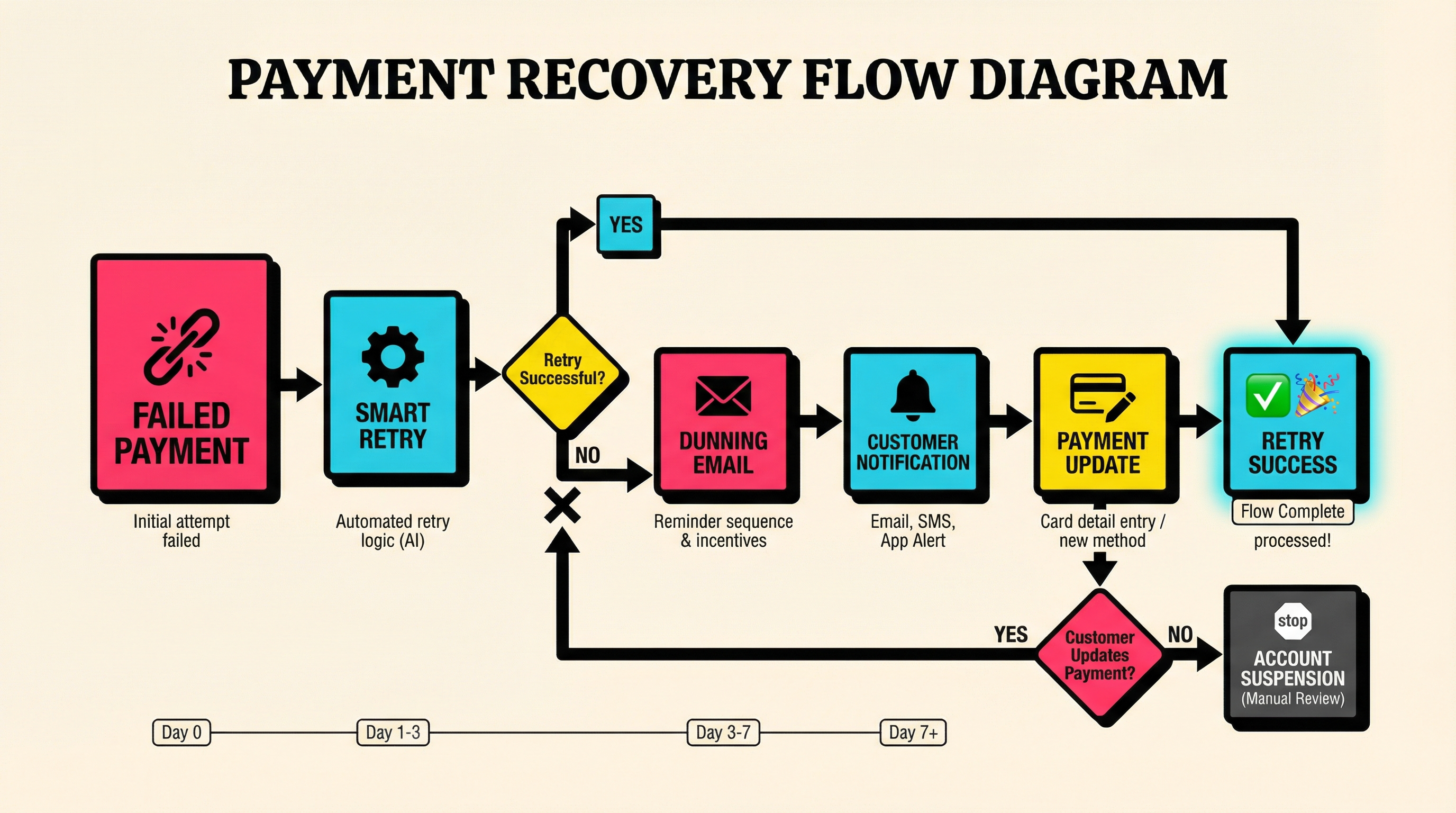
Stripe's Smart Retries are your first line of defense. They automatically retry failed payments at optimal times based on millions of transaction patterns.
How to Turn On Smart Retries
- Log into your Stripe Dashboard
- Go to Settings → Billing → Subscriptions and emails
- Scroll to Payment retry rules
- Toggle Smart retries to ON
That's it. Stripe will now automatically retry failed payments over a 3-week period, choosing the best times based on:
- Card issuer patterns
- Historical success rates
- Time of day/week factors
- Customer payment behavior
What Smart Retries Do (and Don't Do)
Smart retries handle the payment retry logic, but they don't communicate with customers. You still need dunning emails to tell customers about failed payments and prompt them to update their card details.
For most SaaS businesses, Smart Retries recover 15-25% of failed payments without any customer intervention. But to hit 40%+ recovery, you need the full flow.
Step 2: Configure Subscription Lifecycle Settings
Stripe needs to know how long to keep trying before giving up. This is your subscription's "grace period."
Setting the Retry Window
- In Stripe Dashboard → Settings → Billing
- Find Subscription settings
- Set Unpaid subscription handling:
- Mark subscription as past due: Keeps trying without canceling
- Automatically cancel after X days: Hard deadline (typically 14-21 days)
Most SaaS companies use:
- 3-7 days for low-touch products ($10-50/mo)
- 14-21 days for mid-market products ($100-500/mo)
- 30+ days for enterprise (custom handling)
Longer windows give more recovery chances but risk accumulating unpaid invoices.
Pro Tip: Pause vs Cancel
Consider pausing subscriptions instead of canceling them. Paused subscriptions:
- Keep customer data and history intact
- Make reactivation frictionless
- Show customers you're not writing them off
Stripe supports this via the API, though it requires custom logic.
Step 3: Set Up Dunning Emails
Dunning emails are automated messages that notify customers about failed payments and guide them to update their payment method.
Using Stripe's Built-In Dunning Emails
Stripe provides basic dunning emails out of the box:
- Go to Settings → Billing → Emails
- Enable Failed payment emails
- Customize the email template:
- Add your branding
- Write a friendly, non-threatening message
- Include a direct link to update payment method
- Mention the retry schedule
Stripe's default emails are functional but limited. For better control, use a dedicated email service.
Building a Custom Dunning Flow
For more sophisticated recovery, set up a multi-touch email sequence:
Email 1 (Day 0): Immediate notification
- Subject: "Payment failed for [Your Product] – update now"
- Tone: Helpful, not accusatory
- Action: One-click link to payment settings
Email 2 (Day 3): Gentle reminder
- Subject: "Quick reminder: update your payment method"
- Tone: Friendly nudge
- Action: Same link, plus customer support contact
Email 3 (Day 7): Urgency without panic
- Subject: "Your [Product] access is about to pause"
- Tone: Direct but respectful
- Action: Clear deadline, support offer
Email 4 (Day 14): Final notice
- Subject: "Last chance to keep your [Product] account active"
- Tone: Regretful but firm
- Action: Reactivation path, cancellation date
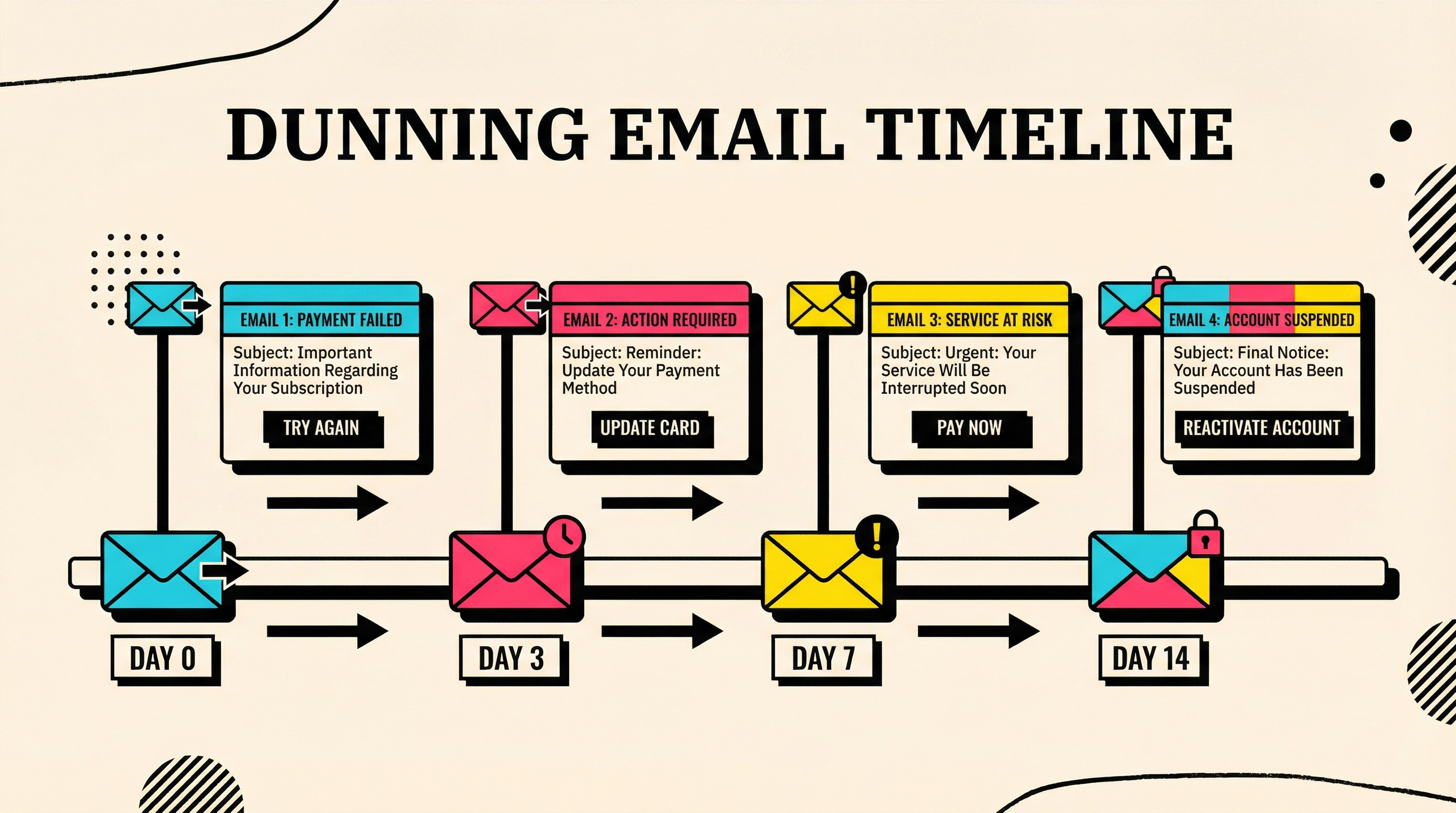
This sequence gives customers multiple opportunities to fix the issue without feeling harassed. Studies show 3-4 touch points recover significantly more than a single email.
For proven dunning email templates and strategies, check out our guide on dunning email strategies.
Step 4: Create a Self-Service Payment Update Flow
Customers need an easy way to update their payment method without contacting support.
Stripe Customer Portal
The fastest solution is Stripe's hosted Customer Portal:
- Go to Settings → Billing → Customer portal
- Enable the portal
- Configure allowed actions:
- Update payment method ✓
- Update billing info ✓
- View invoices ✓
- Cancel subscription (optional, risky during recovery)
- Customize branding to match your product
- Copy the portal URL
Include this URL in all dunning emails and in-app notifications.
In-App Payment Update (Advanced)
For better UX, embed payment updates directly in your app:
- Use Stripe Elements to create a card update form
- Call
stripe.customers.update()to replace the payment method - Trigger immediate retry via
stripe.invoices.pay() - Show success confirmation
This keeps customers in your product and reduces friction significantly.
Step 5: Add In-App Notifications
Email alone isn't enough. Customers might miss emails or mark them as spam. In-app notifications catch them when they're already engaged.
Where to Show Notifications
- Dashboard banner: Persistent until resolved
- Login modal: Can't miss, but use sparingly
- Billing page indicator: Always visible on account settings
- Feature gates: Block new actions until payment updated (nuclear option)
Most effective: a non-blocking banner at the top of your app that links directly to payment settings.
What to Say
❌ Don't: "Your payment failed. Update your card."
✓ Do: "We couldn't process your payment. Update your card to keep using [Product]."
Include:
- What happened
- What they need to do
- How to do it (one-click link)
- When access will be suspended
Step 6: Monitor Decline Codes
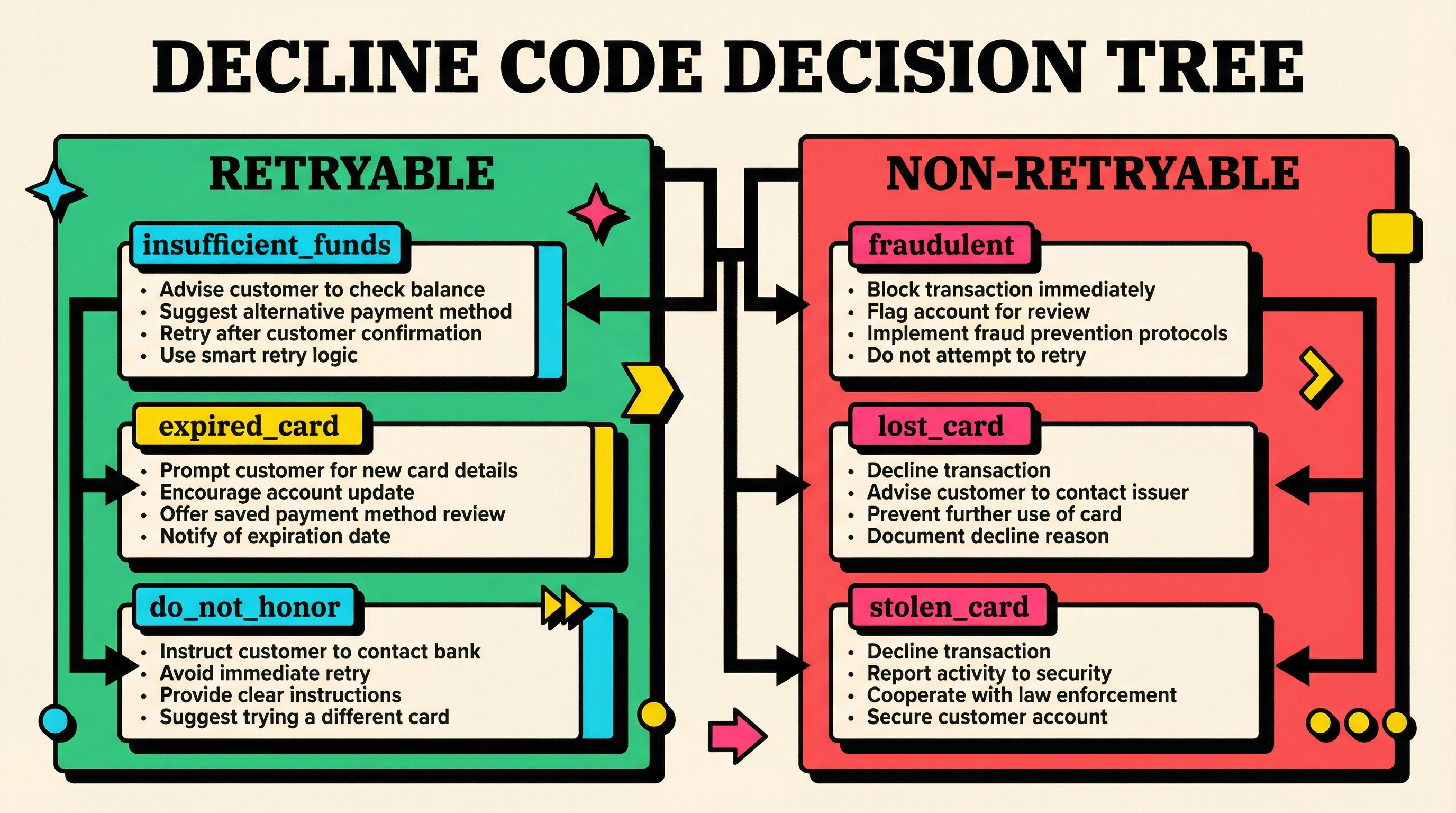
Not all failed payments are equal. Some are retryable (insufficient funds), others aren't (stolen card).
Stripe provides decline codes that tell you exactly why a payment failed. Use these to customize your recovery approach:
Retryable failures (keep trying):
insufficient_funds→ Retry in 3-5 daysexpired_card→ Send card update email immediatelydo_not_honor→ Retry once, then prompt customer
Non-retryable failures (don't waste time):
fraudulent→ Block immediatelylost_card→ Require new payment methodcard_declined(generic) → One retry, then manual intervention
You can access decline codes via the Stripe Dashboard or API response:
const charge = await stripe.charges.retrieve('ch_xxx');
const declineCode = charge.outcome.reason;
For a complete breakdown of what each code means and how to handle it, see our guide on Stripe decline codes explained.
Step 7: Set Up Webhooks for Real-Time Response
Webhooks let you react instantly to payment events instead of waiting for scheduled jobs.
Key Webhooks for Payment Recovery
invoice.payment_failed→ Trigger dunning email, show in-app alertinvoice.payment_succeeded→ Clear notifications, send confirmationcustomer.subscription.updated→ Track status changescharge.failed→ Log decline code, route to appropriate flow
How to Set Up a Webhook
- Go to Developers → Webhooks
- Click Add endpoint
- Enter your endpoint URL (e.g.,
https://yourapp.com/stripe/webhooks) - Select events to listen for
- Copy the signing secret
- Verify webhook signatures in your code:
const event = stripe.webhooks.constructEvent(
  request.body,
  request.headers['stripe-signature'],
  webhookSecret
);

if (event.type === 'invoice.payment_failed') {
  // Handle failed payment
  const invoice = event.data.object;
  await sendDunningEmail(invoice.customer);
}
Webhooks enable immediate response, better customer experience, and higher recovery rates.
Step 8: Add Card Expiry Monitoring
Many failed payments happen because cards expire. Catch these proactively:
How to Monitor Card Expiry
1. Pull customer payment methods via API:
const paymentMethods = await stripe.paymentMethods.list({
  customer: 'cus_xxx',
  type: 'card',
});

const card = paymentMethods.data[0].card;
if (card.exp_year === currentYear && card.exp_month === currentMonth) {
  // Card expires this month
  await sendExpiryReminder(customer);
}
2. Send reminder emails 30 days before expiry
3. Follow up 7 days before expiry
4. Final reminder 1 day before expiry
Proactive expiry management prevents 10-15% of would-be failures before they happen.
Step 9: Track Recovery Metrics
You can't improve what you don't measure. Key metrics to track:
Payment Recovery Rate
Recovery Rate = (Recovered Payments / Total Failed Payments) × 100Good: 30-40%
Great: 40-50%
Excellent: 50%+
Time to Recovery
How long does it take to recover a failed payment? Faster is better. Most recovered payments come within 7 days.
Recovery by Channel
Which method works best?
- Smart Retries alone: 15-25%
- Email prompts: +10-15%
- In-app notifications: +5-10%
- SMS (if you use it): +3-5%
Test and optimize each channel.
Revenue at Risk
At-Risk MRR = Sum of all past-due subscriptionsMonitor this daily. A sudden spike indicates a systemic issue (payment gateway problem, bank restrictions, etc.).
For more on tracking churn and recovery metrics, see our breakdown of how failed payments destroy MRR.
Step 10: Test Your Flow
Before going live, test every step:
Using Stripe Test Mode
- Switch to Test mode in Stripe Dashboard
- Create a test subscription with a test customer
- Use Stripe's test card numbers to trigger failures:
4000000000000341→ Attaching fails (card declined)4000000000009995→ Charge fails (insufficient funds)4000000000000069→ Charge fails (expired card)
- Verify that:
- Smart Retries trigger
- Dunning emails send
- In-app notifications appear
- Webhooks fire correctly
- Payment updates work
Test the Customer Experience
Walk through the flow as a customer:
- Receive dunning email
- Click payment update link
- Update card details
- See success confirmation
- Verify access restored
Fix any friction points before launching.
Common Mistakes to Avoid
Mistake #1: Too Aggressive Retry Logic
Retrying every hour annoys customers and racks up fees. Use Stripe's Smart Retries or space manual retries 3-5 days apart.
Mistake #2: Passive Dunning Emails
Emails that say "your payment failed" without a clear action button get ignored. Always include a one-click update link.
Mistake #3: Canceling Too Quickly
Canceling after 3 days leaves money on the table. Most recovered payments happen between day 3-14.
Mistake #4: No In-App Alerts
Customers who are actively using your product shouldn't find out via email that their access is ending. In-app notifications are critical.
Mistake #5: Not Monitoring Decline Codes
Treating all failures the same wastes time. Customize your response based on whether the failure is retryable.
Mistake #6: Forgetting Card Expiry
This is the lowest-hanging fruit. Monitor and remind customers before cards expire.
What Good Recovery Looks Like
A well-configured payment recovery flow recovers 40-50% of failed payments and reduces involuntary churn by 30-60%.
Here's what it looks like in practice:
Day 0: Payment fails at 2am (card expired)
- Smart Retry attempts at 9am (fails)
- Dunning email #1 sent at 9:05am
- In-app banner appears on next login
Day 1: Customer logs in, sees banner, clicks "Update Payment"
- Customer Portal opens
- New card added in 30 seconds
- Stripe immediately retries and succeeds
- Banner disappears, confirmation email sent
Result: Customer recovered in 24 hours with zero manual intervention.
That's the goal. Automate the entire process so customers can fix issues instantly and your team never touches manual recovery.
Next Steps: Automate and Optimize
Once your basic flow is live, focus on optimization:
- A/B test email subject lines and copy — small changes can boost open rates by 20%+
- Experiment with retry timing — track which retry attempts convert best
- Segment by customer value — give high-LTV customers longer grace periods
- Add SMS for high-value accounts — 90%+ open rate for urgent nudges
- Monitor recovery by cohort — new customers vs long-term, plan tier, geography
Payment recovery is not a set-it-and-forget-it system. Plan to review and tweak quarterly based on data.
The Bottom Line
Setting up a stripe payment recovery flow takes a few hours but pays back immediately. For a SaaS business doing $50k MRR with a typical 5% monthly payment failure rate, recovering even 30% of failures saves $750/month or $9k/year.
At scale, this becomes tens or hundreds of thousands in recovered revenue, all from automated systems that run in the background.
If you want to see exactly how much revenue you're losing to failed payments right now, run a free churn audit at churnbot.co/audit. It'll scan your Stripe account and show you where the leaks are.
Related Posts
Stripe Do Not Honor Recovery: What SaaS Teams Should Do Next

7 Failed Payment Segments Every Stripe Team Should Track
How healthy is your Stripe account?
Get a free churn health report. Find pending cancellations, failed payments, and expiring cards putting your MRR at risk.
Run Free Audit