The Stripe Payment Health Checklist: 15 Things to Review
Your Stripe account holds the truth about your revenue health. But most SaaS founders never look closely enough.
Every month, preventable payment failures chip away at your MRR. Cards expire. Banks decline valid charges. Customers miss dunning emails. And you're left wondering why growth feels harder than it should.
This checklist gives you 15 specific things to review in your Stripe Dashboard today. No theory, no fluff. Just the exact spots where revenue leaks, and how to plug them.
Run through this list once a month. It takes 30 minutes and can save thousands in lost revenue.
Payment Decline Analysis
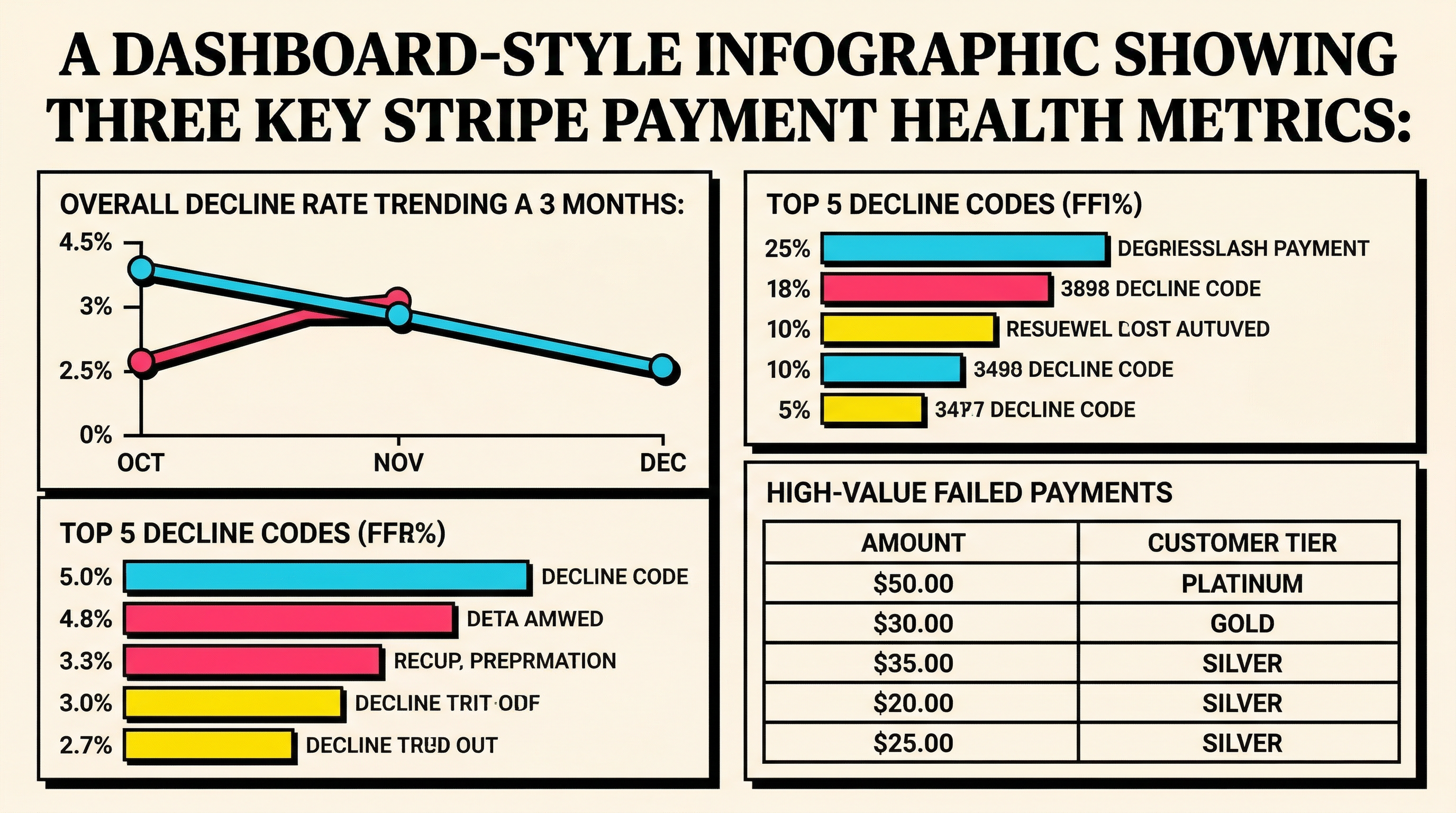
1. Check Your Overall Decline Rate
Where: Stripe Dashboard → Reports → Balance
What to look for: Your payment success rate over the last 30 days. Industry average for SaaS is 85-90% success. If you're below 85%, you have a problem.
Red flags:
- Success rate trending down month-over-month
- Weekend/holiday spikes in failures (timing issue)
- Geographic patterns (regional payment method issues)
Action: Export failed payments from the last 30 days. Group by decline code. The top 3 codes will tell you where to focus.
2. Audit Decline Codes Distribution
Where: Stripe Dashboard → Payments → filter by Failed
What to look for: The specific Stripe decline codes causing failures. Different codes need different fixes.
Most common preventable codes:
insufficient_funds(40-50% of declines): retry timing issueexpired_card(15-20%): card updater not enableddo_not_honor(10-15%): retry with better metadatacard_declined(generic, 5-10%): needs investigation
Action: If expired_card is in your top 3, enable card updater immediately (see #4). If insufficient_funds dominates, review retry timing (see #6).
3. Identify High-Value Failed Payments
Where: Stripe Dashboard → Payments → Failed → sort by Amount
What to look for: Annual plans, high-tier subscriptions, enterprise customers. A single $10k annual renewal failure hurts more than 100 $10/mo declines.
Red flags:
- Annual renewals failing at >20% rate
- Enterprise customers (>$500/mo) with payment issues
- Multiple failures on the same high-value customer
Action: Manually reach out to any customer with a failed payment >$1000. Don't rely on automated dunning for these.
Recovery & Retry Configuration
4. Verify Card Updater Is Enabled
Where: Stripe Dashboard → Settings → Billing → Subscriptions and emails
What to look for: "Automatically update expired cards" should be ON. This uses Visa/Mastercard account updater networks to get new card details before expiry.
Impact: Reduces expired card failures by 30-40%. Free feature, massive ROI.
Action: If not enabled, turn it on now. It works retroactively for existing subscriptions.
5. Review Smart Retries Settings
Where: Stripe Dashboard → Settings → Billing → Subscriptions and emails → Smart Retries
What to look for: Smart Retries should be enabled. Stripe uses machine learning to pick optimal retry times based on card issuer patterns.
How it works: Instead of retrying every 3 days, Stripe waits for the moment a card is most likely to have funds (e.g., after direct deposit clears).
Action: If you have custom retry logic, test it against Stripe Smart Retries. Read our comparison guide for benchmarks.
6. Check Retry Timing for Insufficient Funds
Where: Stripe Dashboard → Settings → Billing → Subscriptions and emails → Retry schedule
What to look for: Default retry timing for insufficient_funds declines. If you're using legacy settings (retry immediately, then 3 days, then 7 days), you're missing recovery opportunities.
Optimal timing: Wait 5-7 days after first decline (gives customers time to get paid). Then retry 2-3 more times over 2 weeks.
Action: Let Smart Retries handle this automatically, or manually configure retry delays to align with paycheck cycles (typically biweekly).
7. Audit Your Dunning Email Sequence
Where: Stripe Dashboard → Settings → Billing → Subscriptions and emails → Email settings
What to look for: Which dunning emails are enabled, their timing, and open rates.
Red flags:
- Only 1 dunning email configured (should be 3-4)
- Sending immediately after first decline (too aggressive)
- Generic subject lines ("Payment failed" gets ignored)
- No payment update link included
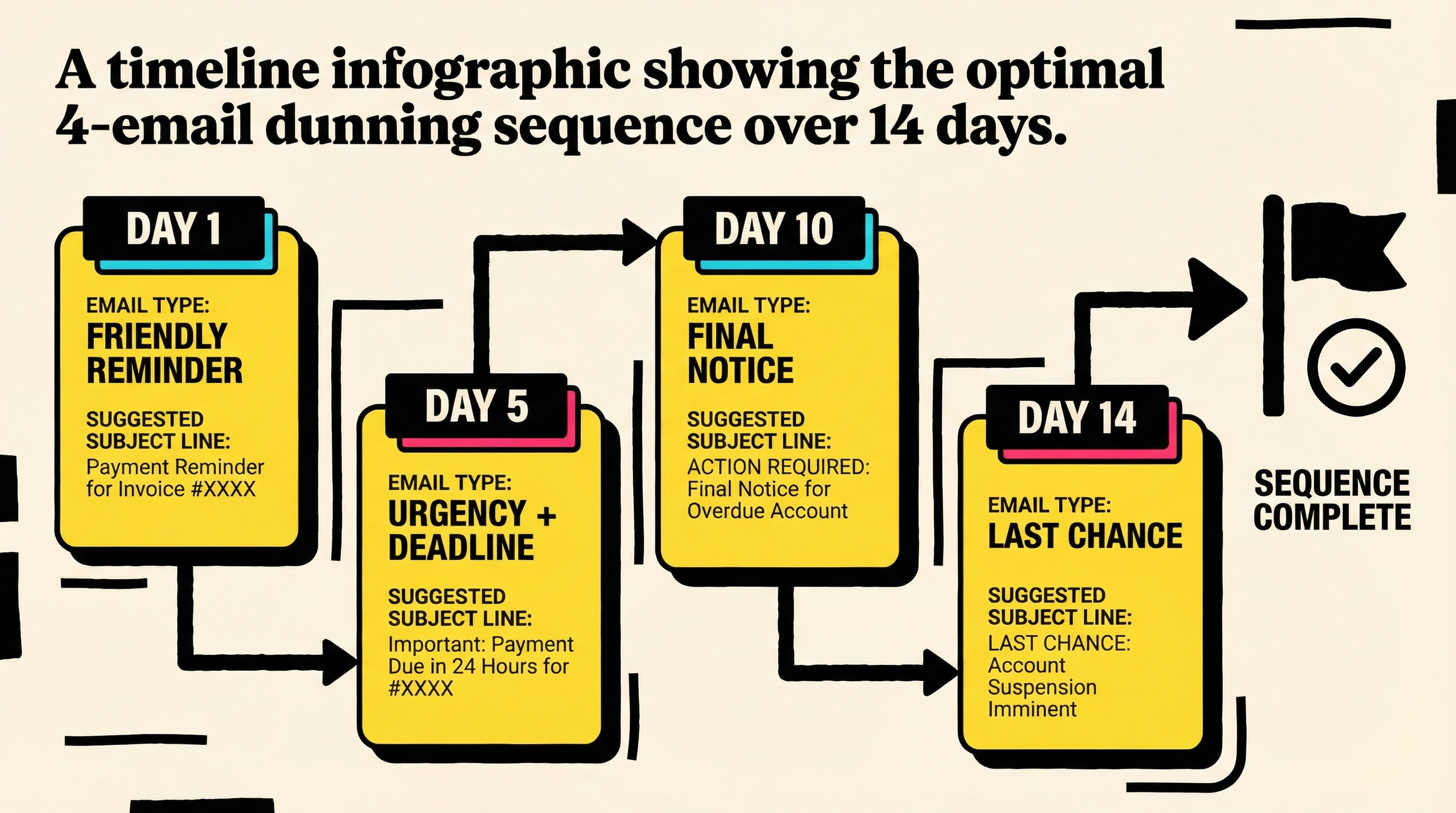
Action: Review our 6 email templates for payment recovery. Most founders send too few emails or give up too early. You should have:
- Email 1: 24h after first failure (friendly reminder)
- Email 2: 5 days later (urgency + deadline)
- Email 3: 10 days later (final notice)
- Email 4: 14 days (last chance before cancellation)
Subscription Health Monitoring
8. Track Involuntary Churn Rate Separately
Where: Not in Stripe by default. You need to calculate it manually or use a tool.
Formula:
Involuntary Churn Rate = (Customers lost to payment failures / Total customers) × 100
What good looks like: <2% monthly involuntary churn for healthy SaaS. If you're above 3%, you're leaving serious money on the table.
Action: Calculate your involuntary churn rate for the last 3 months. Track it monthly. It should trend down as you optimize payment health. See our guide on how to calculate involuntary churn rate.
9. Monitor Payment Method Expiry Dates
Where: Stripe Dashboard → Customers → filter by expiring cards
What to look for: Cards expiring in the next 60 days. Stripe shows this under customer details.
Proactive strategy:
- 60 days before: Send card update reminder
- 30 days before: Second reminder with urgency
- 7 days before: Final notice
Don't wait for the card to expire and the charge to fail.
Action: Export customers with cards expiring in next 90 days. Send proactive update requests. Most customers will update if you ask nicely before it becomes a problem.
10. Review Grace Period Settings
Where: Stripe Dashboard → Settings → Billing → Subscriptions and emails → Grace period
What to look for: How long subscriptions remain active after payment failure. Default is often too short.
Recommended: 7-14 day grace period. Gives you time to recover payment without immediately cutting off access (which kills retention).
Trade-off: Longer grace period = more recovery opportunity, but also more free usage if payment never recovers.
Action: Set grace period to match your retry schedule. If your final retry happens at day 14, grace period should extend to day 15.
11. Check for Duplicate Failed Payment Attempts
Where: Stripe Dashboard → Payments → Failed → sort by Customer
What to look for: Multiple failed attempts on the same customer in a short window (same day or within hours).
Why it matters: Rapid retries don't improve success rates and can trigger fraud alerts. If you see this, your retry logic is broken.
Action: Review webhook handling and retry configuration. Make sure you're not double-triggering retries via webhooks + scheduled jobs.
Fraud & Risk Management
12. Review Radar Settings for False Declines
Where: Stripe Dashboard → Radar → Rules
What to look for: Overly aggressive fraud rules blocking legitimate payments.
Red flags:
- Radar blocking >5% of payments
- High-value customers getting flagged
- Geographic blocks on countries where you have customers
Action: Review blocked payments from last 30 days. If you see patterns of false positives, adjust Radar rules. Common culprits: blocking VPNs (many remote workers use them), blocking entire countries, overly strict velocity checks.
13. Check for Regional Payment Failures
Where: Stripe Dashboard → Payments → Failed → add column for Country
What to look for: Specific countries or regions with unusually high decline rates.
Why it happens:
- Payment method mismatch (e.g., requiring credit cards in SEPA regions)
- Currency issues (charging in wrong currency)
- 3D Secure requirements not handled properly
Action: If any region has >30% failure rate, investigate. You may need to enable local payment methods or adjust 3D Secure handling.
14. Audit 3D Secure Exemptions
Where: Stripe Dashboard → Settings → Payment methods → 3D Secure
What to look for: How you're handling Strong Customer Authentication (SCA) in Europe.
Best practice: Use exemptions where allowed (low-value transactions, recurring payments, trusted merchants) to reduce friction. But don't skip 3DS when required or you'll eat the fraud liability.
Action: Review failed payments with authentication_required decline code. If this is >10% of failures, you're not handling 3DS properly.
Operational Hygiene
15. Set Up Webhooks for Payment Failures
Where: Stripe Dashboard → Developers → Webhooks
What to look for: Active webhooks listening for critical payment events.
Essential events to monitor:
invoice.payment_failed(triggers recovery flow)invoice.payment_succeeded(confirms recovery)customer.subscription.deleted(involuntary churn)charge.failed(for one-time payments)
Action: If you don't have webhooks configured, set them up. Read our guide on the best Stripe webhooks for payment health monitoring.
Bonus check: Review webhook delivery success rate. If <95%, you're missing critical events. Fix endpoint issues immediately.
What to Do Next
You just reviewed 15 critical Stripe payment health indicators. Here's what to prioritize:
High impact, quick wins:
- Enable card updater (#4)
- Turn on Smart Retries (#5)
- Fix dunning email sequence (#7)
Medium effort, high return:
- Calculate involuntary churn rate (#8)
- Set up proactive card expiry emails (#9)
- Review Radar false positives (#12)
Ongoing monitoring:
- Weekly: Check decline rate trends (#1)
- Monthly: Audit high-value failures (#3)
- Quarterly: Full 15-point review
Most SaaS founders discover 5-15% revenue leakage when they run this audit for the first time. The fixes are usually simple. You just have to know where to look.
Want a faster way to find all these issues at once? Run a free churn audit at ChurnBot. It analyzes your Stripe account in 60 seconds and shows you exactly where you're losing money to failed payments.
Related Posts
Stripe Do Not Honor Recovery: What SaaS Teams Should Do Next

7 Failed Payment Segments Every Stripe Team Should Track
How healthy is your Stripe account?
Get a free churn health report. Find pending cancellations, failed payments, and expiring cards putting your MRR at risk.
Run Free Audit